
Use the course you already teach.
Bring your assignments and course materials. MyTA helps students while they work and shows you where they got stuck.
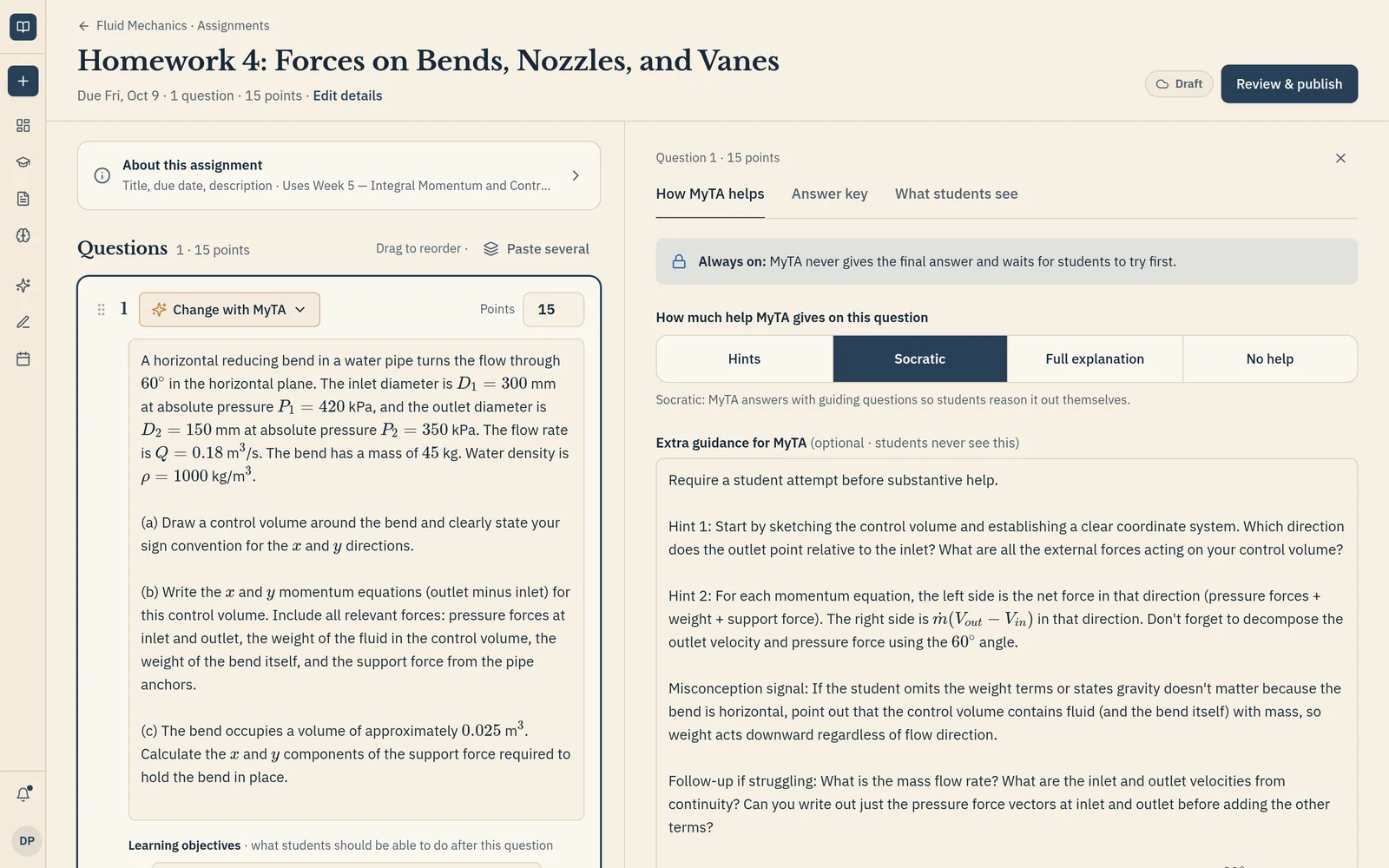
One assignment, from setup to review.
You stay in charge at every step, and finish knowing what each student needs.
Start from your materials
Upload a PDF, write questions, or draft them from your lectures. You review every question.
Help, not answers
Choose how much help MyTA gives on each question. It never hands over the final answer.
Your rubric, your call
Score each question and leave feedback in one place.
Misconceptions and next steps
Detailed analytics show the misconceptions your class shares and each student's areas for improvement, so feedback can be personal.
Start with an assignment you already give.
Three ways in. Every question stays editable.
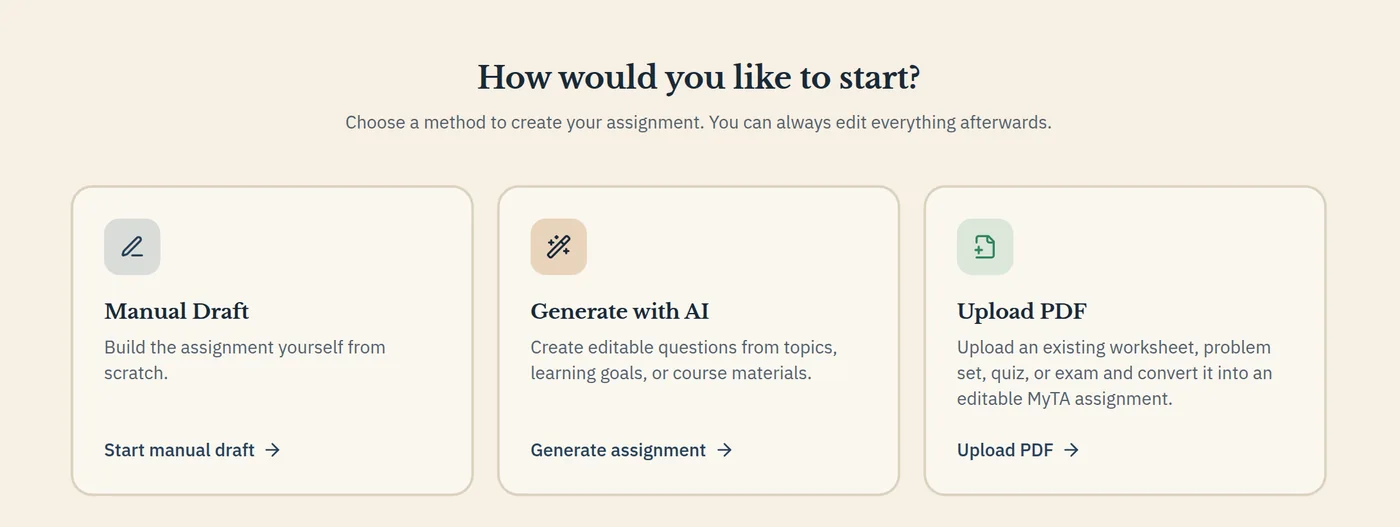
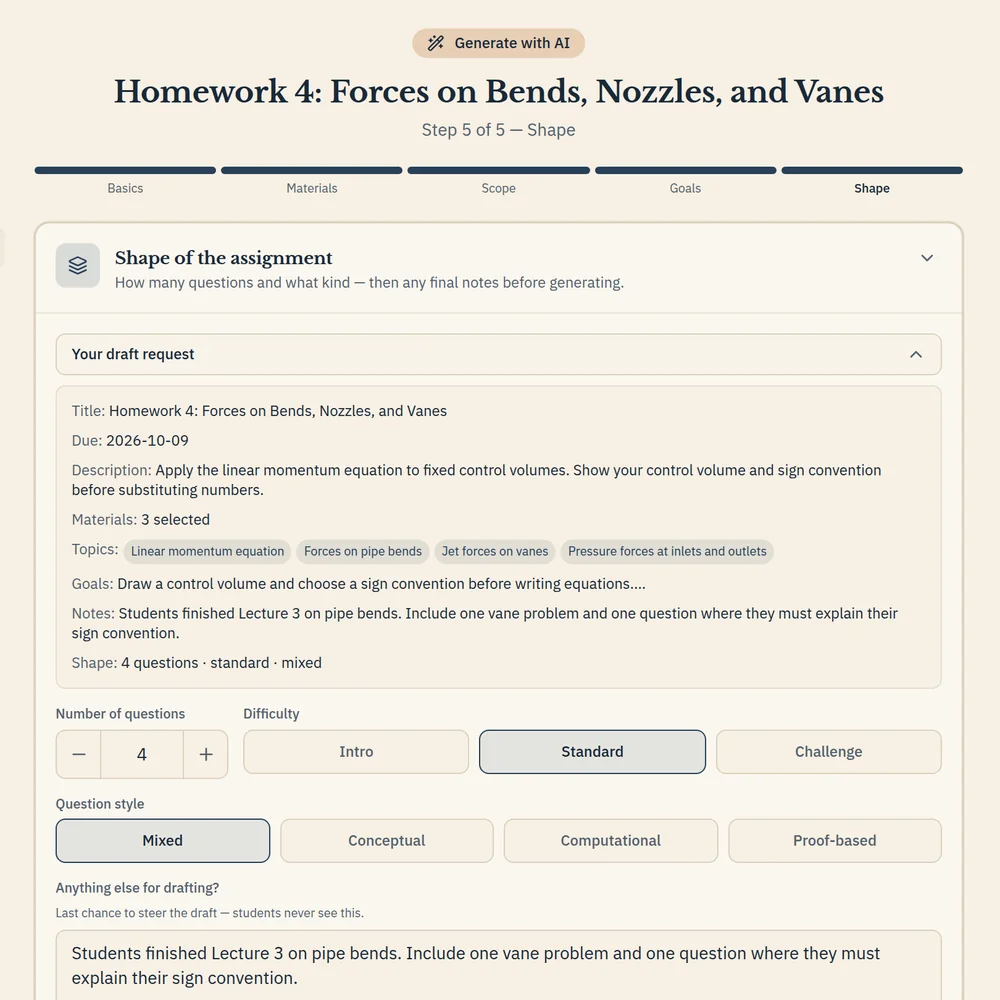
Drafting from your materials
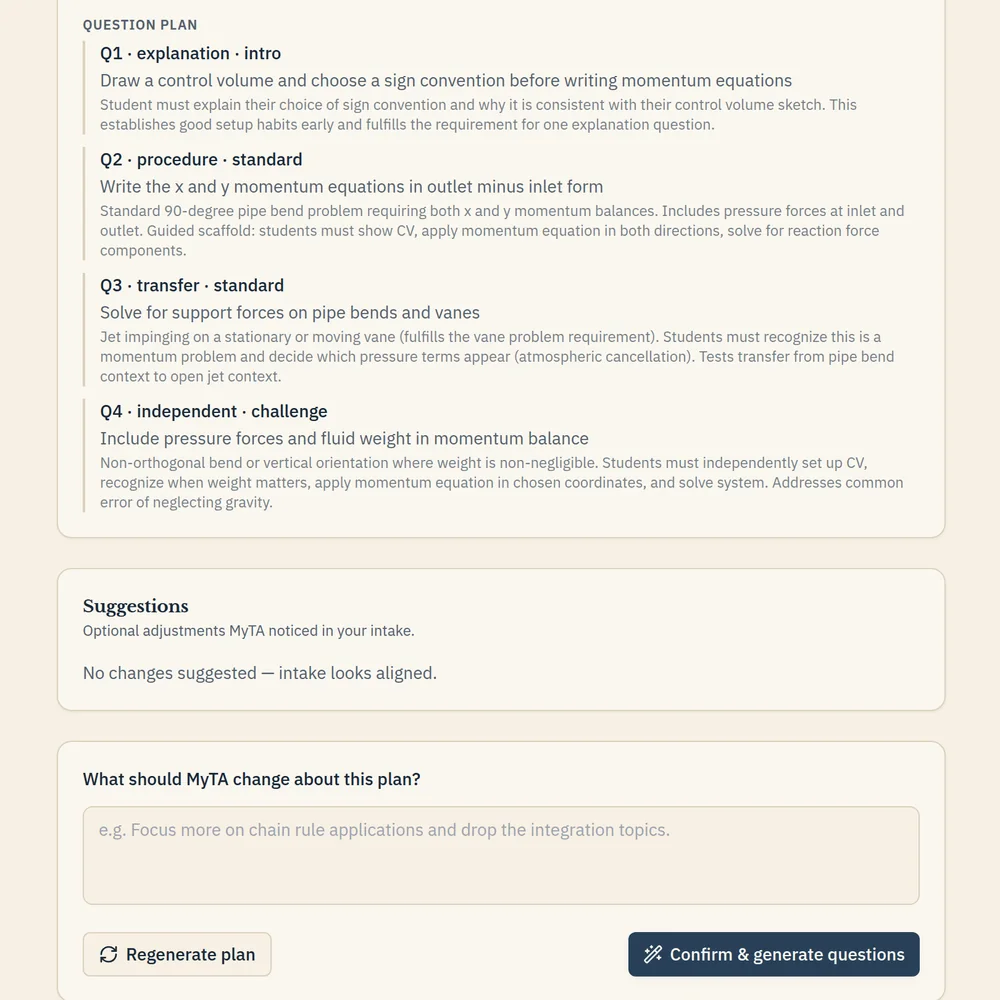
Pick the lectures and readings, add topics and goals, and choose the shape. MyTA shows you its plan before it writes a single question.
Students work on the assignment, not around it.
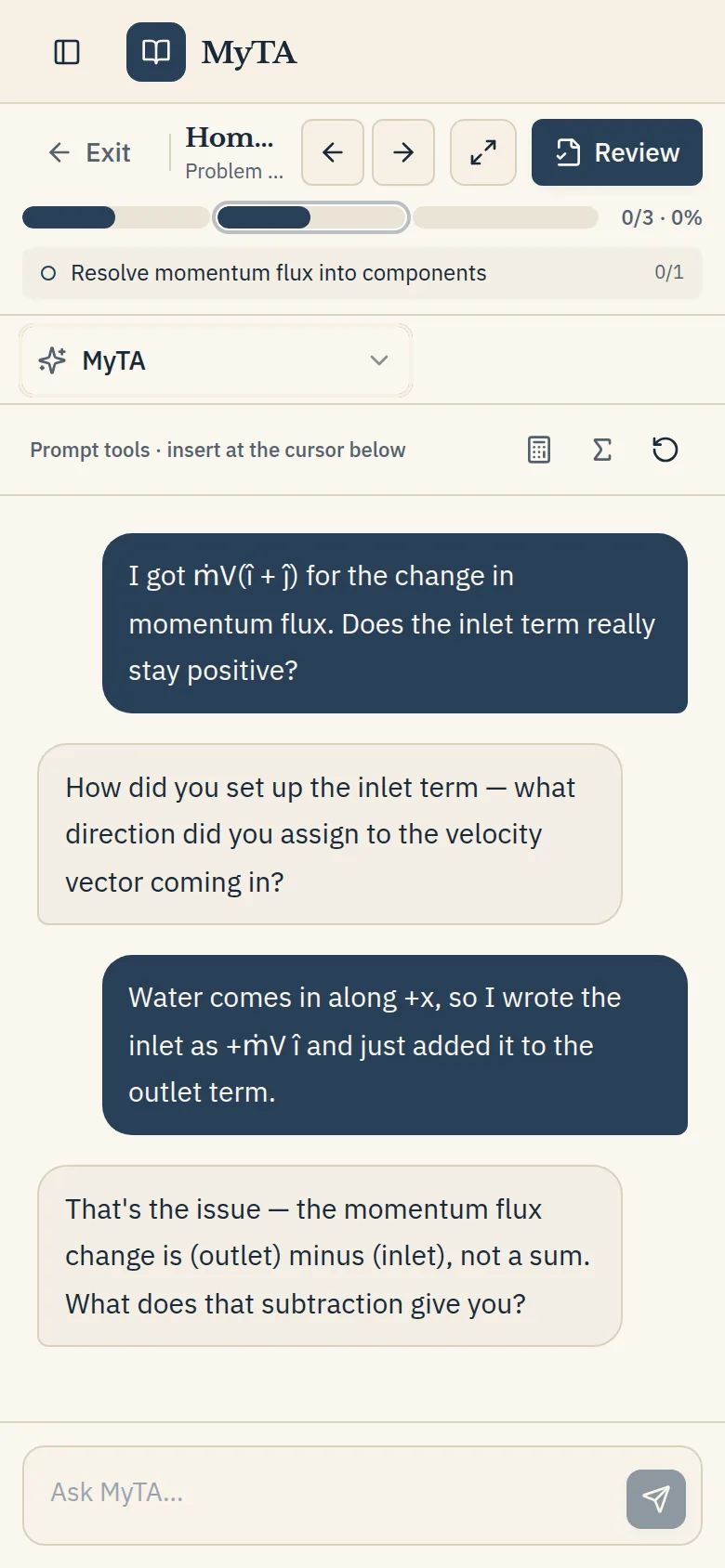
The problem stays in view. MyTA uses your materials to guide students through the step where they are stuck.
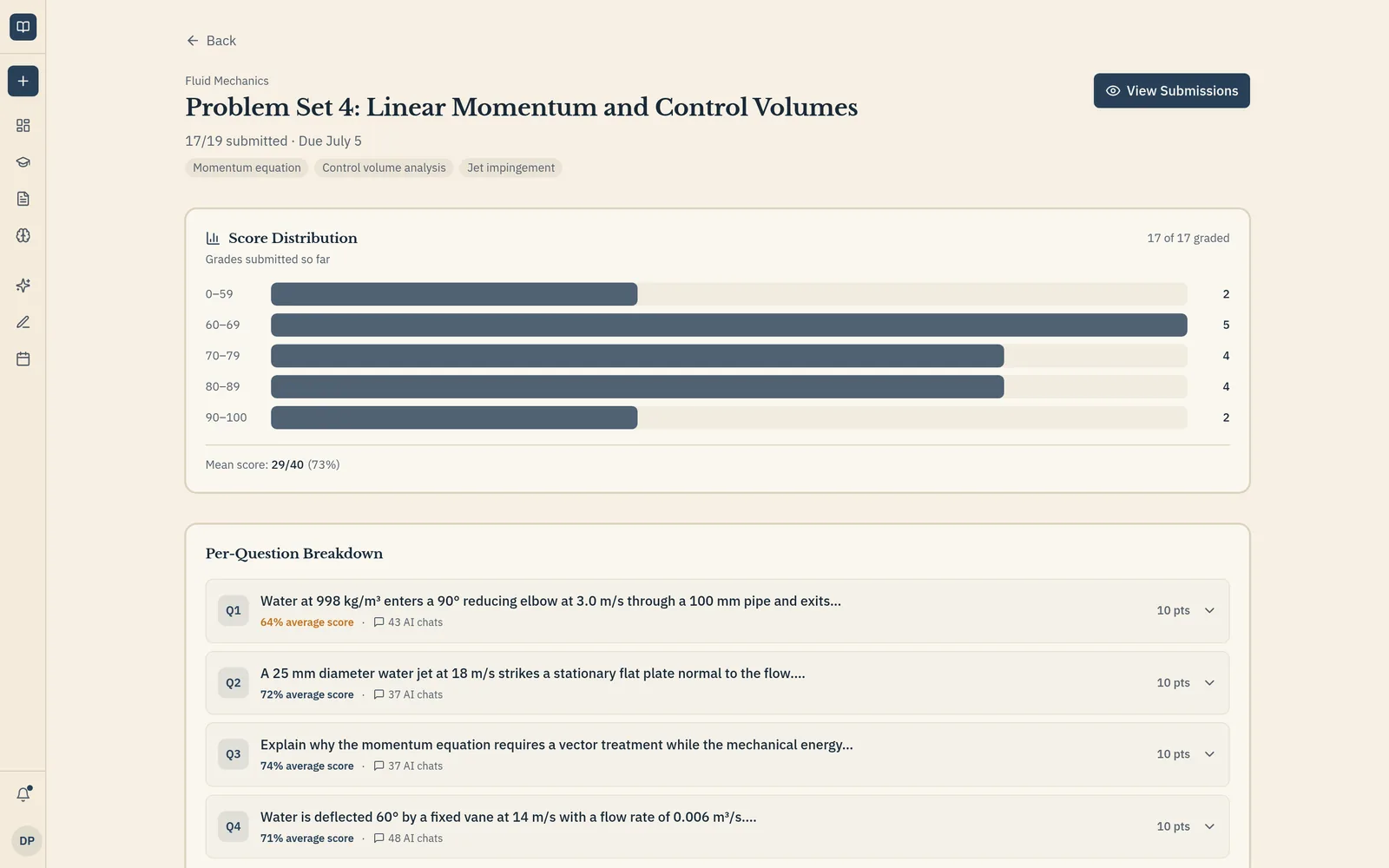
Grade the work. See what each student needs next.
Grade question by question. Detailed analytics surface the misconceptions your class shares and each student's areas for improvement, so your feedback can be personal.
Privacy first: you see class-level patterns, not private chat transcripts.
Designed to connect with the LMS your course already uses.
Pilots run in the browser with no campus IT install. LMS integration is in development.
FERPA Aligned
Student coursework and instructor materials are strictly partitioned by course section and never used to train public AI models.
Zero Data Retention at Model Layer
Requests sent to underlying model providers use zero-data-retention configurations with no persistent model logging.
No Chat Transcript Surveillance
Instructors receive class-level struggle patterns and assignment diagnostics, never private AI conversation transcripts.
We provide architecture, data-flow, and security documentation for your IT review.
Try MyTA in one course.
Start with the assignments and course materials you already use.
First semester free.